
Decor & Objects8 min read
Decor & the catalogue
The Objects tool is where your airport gets its character: hangars, towers, vehicles, people, trees, boats - over 5,000 life-size MSFS models, every one shown as a live 3D preview before you spend a thing. This page covers finding objects, placing them, and the pool system that lets you reuse what you own.
The catalogue
Press O to enter the Objects tool. The first time you enter it, the full-screen Object catalogueopens automatically - a browsable shop of everything you can place. Every card carries a live 3D turntable preview, so you see the actual model spinning, not a flat thumbnail. Cards also show the price, the category, the object's real-world dimensions, and its slot cost (small scatter items read ¼ slot).
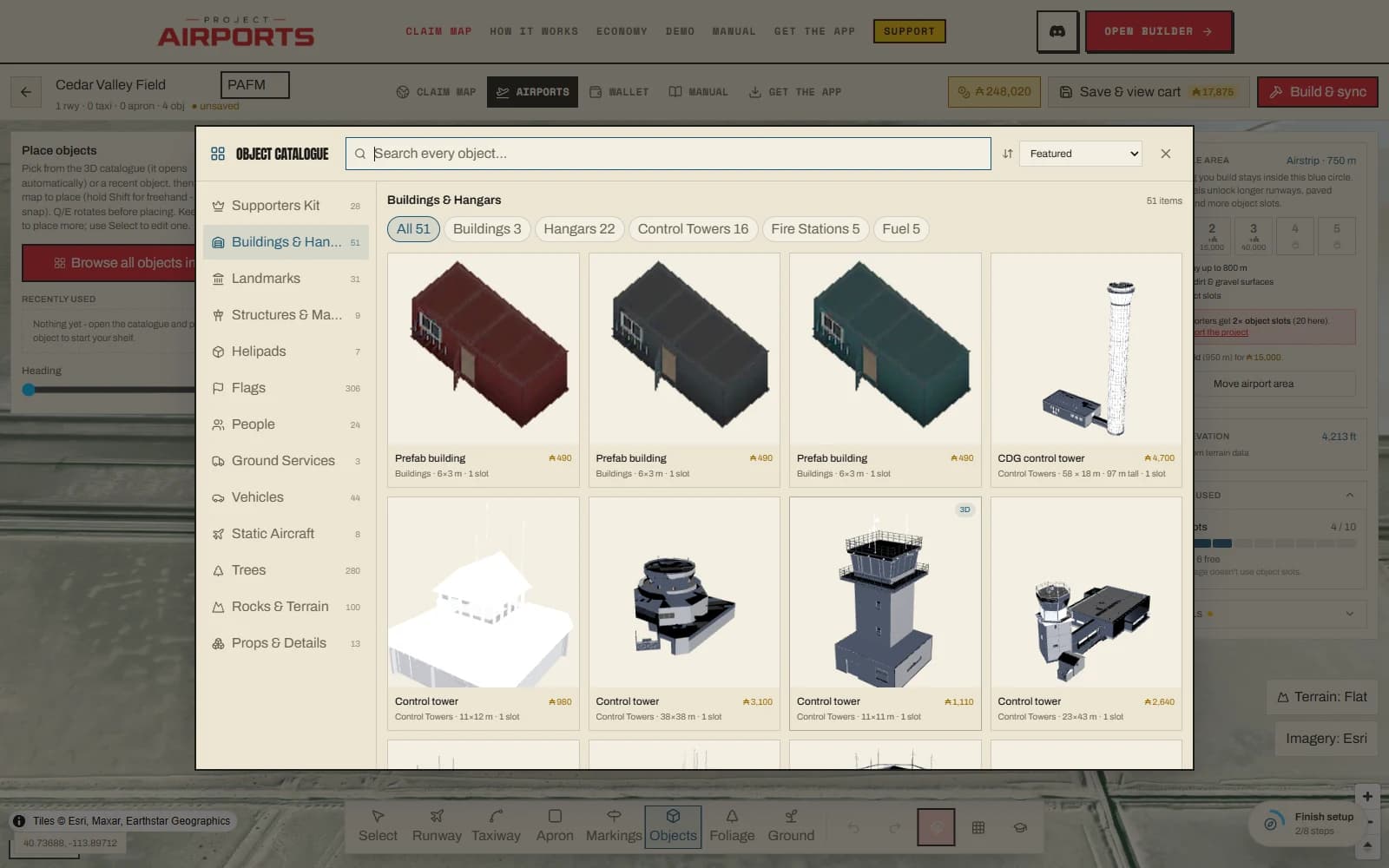
Once you're working, a compact tray keeps a Recently used shelf close at hand, and a Browse all objects in 3D button reopens the full catalogue whenever you want to go shopping again.
Browsing & search
The layout is built for scale: a left shelf rail with counts, category chips to narrow within a shelf, and a second row of sub-section chips where a category runs deep (airliners vs. gliders, ferries vs. fishing boats, palms vs. conifers). The Search every object… box searches names, tags, categories and sub-sections at once, and ranks results - name matches surface first. The sort dropdown defaults to Most placed, live counts of what builders have actually placed across every airport in the world; Largest first, Smallest first, Name A–Zand price in either direction are a click away. Cards with a globe line ("placed at N airports") are carrying that same live count.
The shelves
- Airport first:Hangars & Terminals, Airport Ops (towers, fire stations, fuel, parking, navaid props), Navaid Stations (working VOR/DME and NDB radio stations - the building IS the station, and it may stand anywhere on your claim), Buildings & Homes, Landmarks, Industry & Structures, Helipads
- Around the field:Aircraft & Balloons, Vehicles & Crew, Cargo & Freight, Boats & Ships
- Scenery:Nature & Wildlife, Flags, Signs & Markings, Lighting, Fences & Barriers
- Finishing touches:Props & Details, Interiors, Logos
Landmarks are special enough to earn their own page - they are priced by real-world prestige rather than size.
Your shelves
Two shelves are personal: tap the heart on any card and it joins your Favorites shelf, and a New arrivals shelf collects the newest 500 objects (these cards also wear a New pill). Items stay here until newer additions push them out; they never expire with time. If you already own unplaced copies of something, its card says so - placing those costs nothing, as covered in the pool section below.
A third personal shelf, My Liveries, gathers your own paint: aircraft you've painted in the Livery Workshop's hangar studio land here as placeable statics once they're published. Placing your painted static costs the same as the plain airframe- the paint adds nothing at placement, because the Workshop's Paint Bill already covered it. Your paint always renders in your own sim, and every published livery joins the community network, where Supporterscan install anyone's paint in theirs. The shelf appears once you've published at least one design.
Logos: the shelf that funds creators
The Logosshelf holds creators' logos, each baked onto a low concrete platform. It works differently from every other shelf: the 1,000 Aeros you pay to place one goes straight to the creator that logo belongs to, in full. Nothing is skimmed. Putting a creator's logo on your apron is a direct way to help pay for the airport they're building.
- Your own platform is freeto place - and it earns you nothing, so there's no point placing it at your own field to farm Aeros.
- A placed logo can't be refunded: the money is the creator's the moment you place it. The platform stays in your pool though, so you can move it or re-place it anywhere, any time, for free.
- The house Project Airports platform is free for everyone - it pays nobody.
Content creators get their own platform by uploading a logo in settings; an admin approves it and it appears on this shelf for the whole network.
Placing objects
Pick an item, then click the map to place it. A few habits make this fast:
- Q and E rotate the object before you place it, so it lands facing the right way.
- Keep clicking to place more of the same item - perfect for fence-lines, tree rows, or a ramp full of cones.
- Hold Shift to place without grid snap when you want an organic, hand-scattered look.
Everything is a real, life-size MSFS model - the hangar you place is the size a hangar actually is, which is why the catalogue prints real-world dimensions on every card.
Editing placed objects
Switch to Select and click any placed object to open its properties:
- Heading
- Point the object any direction after placement.
- Scale
- Most objects adjust between 25% and 200%. Landmarks are the exception at 5–15% - they're monuments, not literal reconstructions (why).
- Height offset
- Raise or sink the object between −10 m and +30 m - useful for terraced ground or rooftop props.
- Snap to ground
- A checkbox that keeps the object seated on the terrain. Untick it when you're using a height offset deliberately.
The object pool
Objects are an account-wide pool, not per-airport purchases. Buying an object gives you instances of it; placing one consumes an instance at whichever airport you like. If you place more copies than you own, the difference is auto-bought in the save cart - you never have to pre-shop (how the cart works).
Deleting a placement frees the instance straight back to your pool. From there it's reusable at any of your airports, or refundable from your Wallet if you're done with it - at 100% within 24 hours of buying it, 50% after. Items that pay a creator keep the creator's share out of both, so a 10% creator item refunds 90%, then 40%. Moving your favourite hangar between fields costs nothing.
Windsocks
Windsocks are the catalogue's one moving part: they're animated and driven by the live wind. To make that possible they are delivered as live sim objects by the companion apprather than baked into the scenery - so they appear for companion users near published airports. Place one near your runway; it's the cheapest realism you can buy.