
Building Your Airport6 min read
Saving, the cart & builds
Review cart shows exactly what the current design costs without saving or moving a single Aero. Confirm inside the cart only when you want to commit the layout and payment.
Saving & the cart
On a brand-new airport, the first press opens a one-time introduction before the cart. Confirm the airport name and code, then optionally add a story and up to five hashtags for its public page. None of this removes the name and code controls in the builder's top-left; those remain editable after every save.
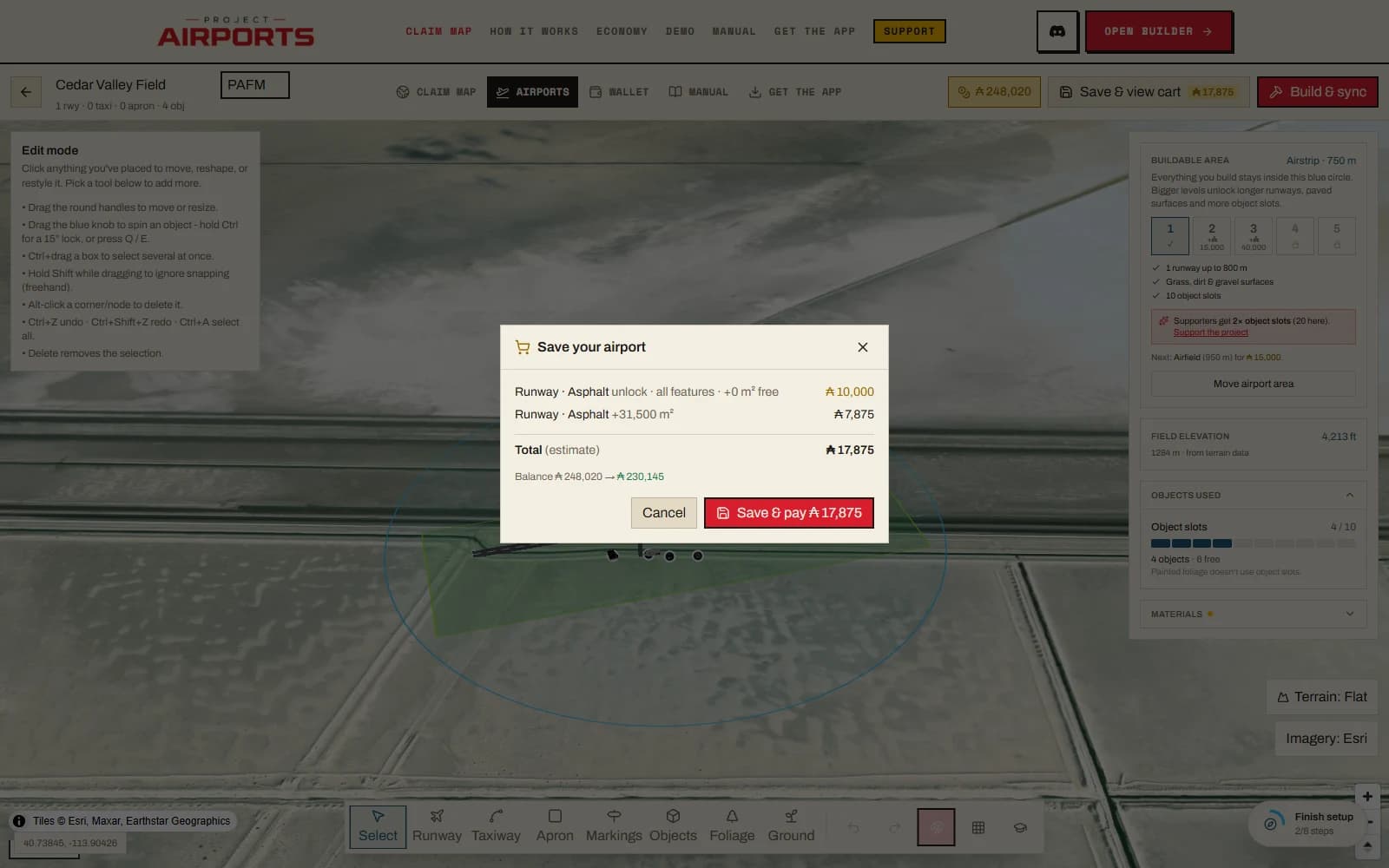
Press Review cart to open the cart modal, titled Save your airport. It lists every charge your changes imply, but the design remains an uncommitted preview until you confirm:
- Material unlocks- first use of a surface you haven't unlocked (materials).
- Paved area- the square metres of surface you've drawn beyond your free allotments.
- Area-level upgrades - if you grew the buildable circle.
- Objects- anything placed that you don't already own is bought automatically to cover the placement. Your object pool is account-wide but each copy can only stand in one place, so copies already in use at your other airports don't cover a placement here.
- Refunds - objects you removed that were bought in the last 24hours are listed as money coming back. They pay out after the charge clears, so they're shown on their own line rather than knocked off the total.
Below the line items you get a Total (estimate)and your balance shown before → after, so there's never a surprise on confirm.
Paying
The confirm button reads the situation for you: it says Save when everything is free, and Save & pay Ⓐn when it isn't. If you can't cover the total, a Not enough Aeros notice links straight to your wallet - see Earning Aeros for how to fill it.
Paying is all or nothing. Everything in the cart, including the unlock fee for a material you are using for the first time, is charged in one go, so a save you can't afford costs you nothing and leaves nothing half-bought. If checkout fails after storing the draft, its larger area remains unowned and can still be changed back; it is never treated as a purchased level.
Build & sync runs the exact same cart, with one addition: after payment your design is queued for a build (the button reads ...& build). Use plain save while you're iterating; use build when you want the result in the sim.
The two-airport split
MSFS can only flatten an airport to one height. If two of your runways sit at very different elevations, the build has to create two airports - a second ICAO appears in-sim alongside the first. The cart warns loudly when this applies and requires an explicit checkbox acknowledgment before you can pay.
The build lifecycle
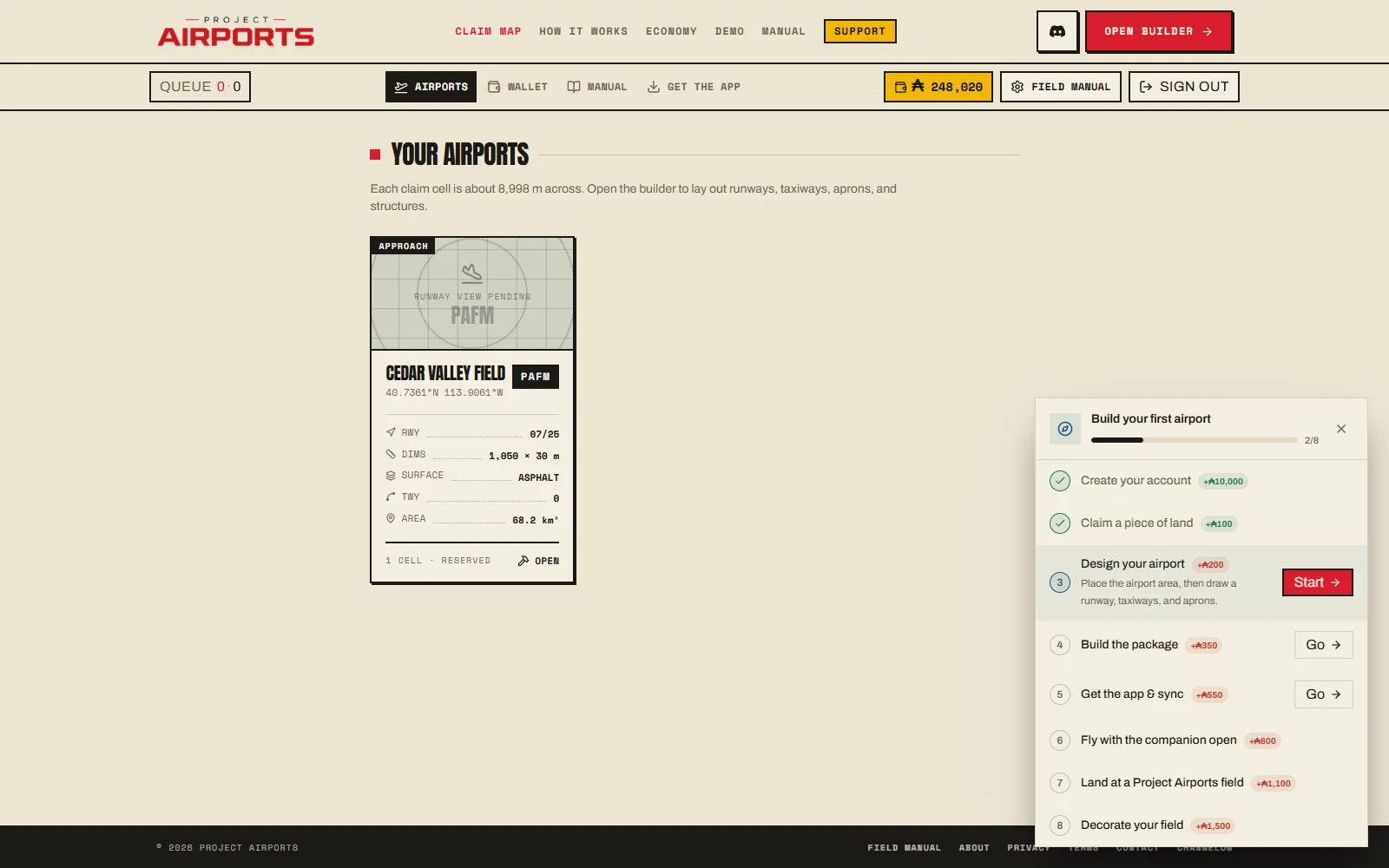
Track builds on the airport cards at Your airports. The status pill moves through:
- Queued
- Waiting for a build machine. A queue badge in the portal nav shows the depth, or your position as Build #N.
- Running
- Compiling your airport package right now.
- Built
- Done - ready to sync and fly.
- Failed
- Something went wrong; the card shows a Retry button. If retries don't clear it, see Troubleshooting.
Supporters'jobs enter a priority lane that build machines claim before standard jobs; within each lane it's first-come-first-served.
After the build
When you queue a build you'll see Build queued, and a notification arrives on completion along with a Get the app to sync & fly CTA. If the companion app is installed, it picks up the fresh build automatically the next time MSFS is closed - the full pipeline is in Syncing to MSFS.
Iterate freely
Rebuilding after edits is free- you pay for what you add, never for compiling it again. Build as often as you like; many builders rebuild after every session. And once the field is something you're proud of, share it: Public airport pages.